OpenClaw, up close
A first hour, a walk through all seventy screens, a look at its neighbors & where I'd take it.
Sean Ross · Design Case Study · October 28 to November 15, 2026 · OpenClaw 2026.10.8, then 2026.11.3 · Run on a Mac mini, in a second user account that isn't an admin, with Claude Opus 5.5 as the model. No Telegram, Slack or other chat apps connected, and it couldn't see or click my screen. Defaults checked on a fresh install on a MacBook Air.
Independent study. Not affiliated with, commissioned by or endorsed by OpenClaw. All screens are from my own install.
What's already good
The UI is very refined. I have enjoyed perusing every nook and cranny of the interface and find there are nice touches and flourishes everywhere. It's clear the application has been pored over and loved. In some ways I find it preferable to Claude and Hermes, which I've honestly spent more time in.
I also like the terminal. It's very retro modern, it reminds me of "WarGames", and I enjoy thinking about how a person talks to a computer without any modern graphical controls in the way. These products open a door back to the mental model of UNIX, and it's good that the door is there for anyone who wants it. I do wonder how many people who aren't engineers will walk through it. In general I think there is still a ways to go before agent apps like this one are as friendly to non-technical people as the apps on their phone. They are still speaking to an engineering audience primarily, cute mascots notwithstanding.
A short list of things I would not touch:

The first hour
Most people never change a default setting. So for most people, what an agent is allowed to do on day one sets the precedent for what it's allowed to do, permanently. That makes the defaults the main thing to test: what does OpenClaw let itself do before I've touched a single setting? I came away saying two things. It acts first and explains after. And when you want to change that, there's no path from the moment to the setting. Here is where each one comes from.
It made the folder without asking. In October, on my first day, I asked Claw to create a folder on my desktop. It did, in eleven seconds. No prompt, no card, an explanation afterward. I couldn't figure out why it had just let itself do that. Shouldn't it be more cautious? Will it do other things to my system without checking to make sure it's ok first? Where is the line with permissions? Does anything go with just a casual conversation?
Permission is granted by default. The answer is in Settings, under Devices, in a section called Exec approvals. On a fresh install, Security is set to Full and Ask is Off. That's the opposite of what I'm used to in Claude, which asks before it uses a new tool. When it made that folder, nothing in the chat told me this setting existed or pointed me to it.

With Approvals switched on, OpenClaw asks and asks well. I had to switch it on myself. On that same screen I changed Security to Allowlist and Ask to Always, and saved.

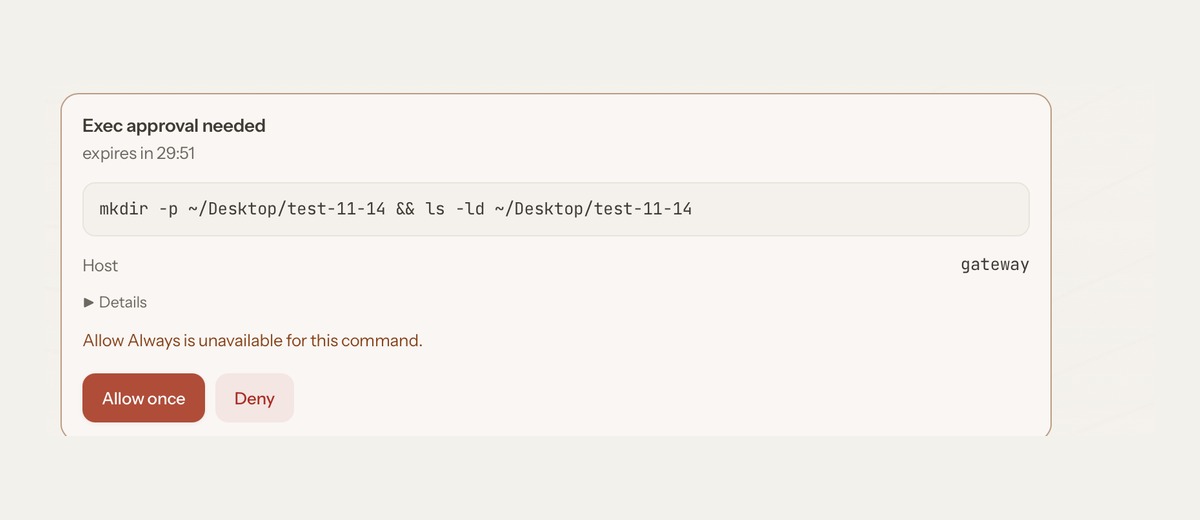
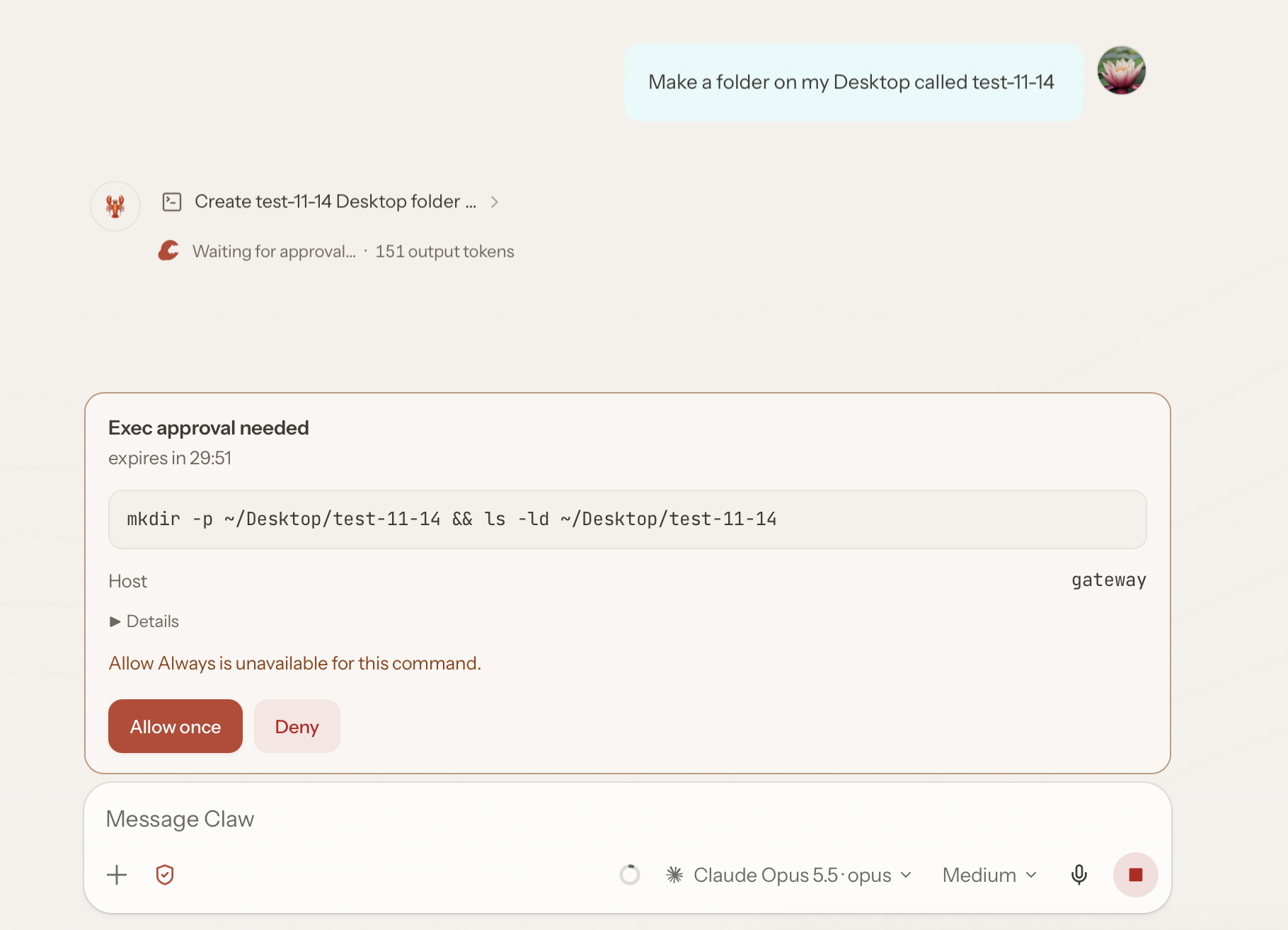
Then I asked for another folder. This time the request stopped at a card: the exact command, Allow once, Deny, a thirty-minute clock. A card like this is familiar from other agent tools, Claude included. I'd like to hear the thinking behind leaving it off to start.
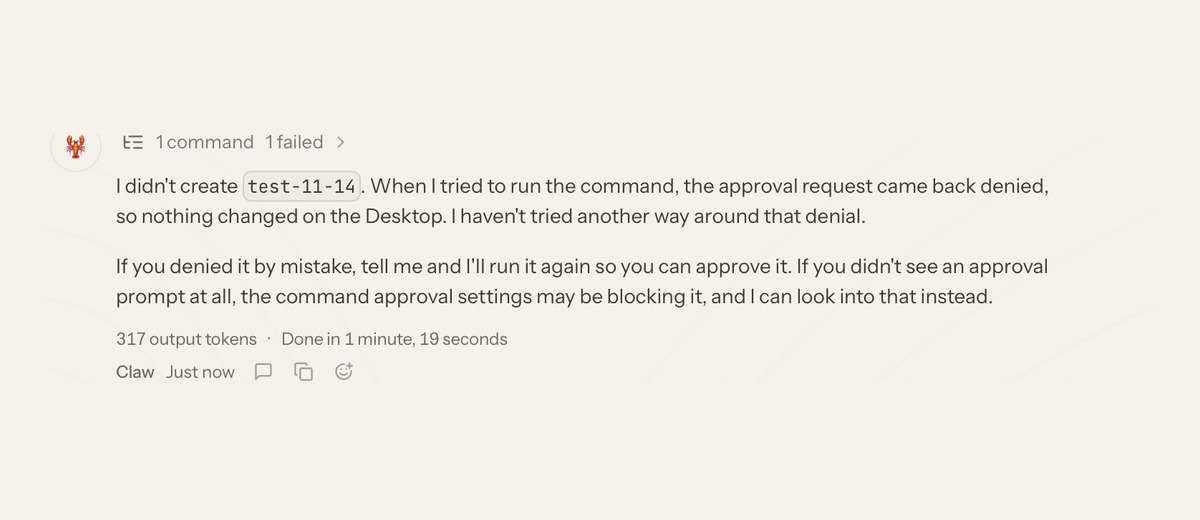
What I'd work on is small, and you can see all of it in the picture below. OpenClaw does say what it's about to do in plain English: "Create test-11-14 Desktop folder". But that line is small, and it sits up in the chat, outside the card. The card where I make the decision is titled "Exec approval needed", and what it shows me is the raw command and "Host gateway". "Allow Always is unavailable for this command" comes with no reason. Nothing says what happens when the clock runs out. And after I pressed Deny, the chat marked that turn "1 failed". I didn't fail. I said no.
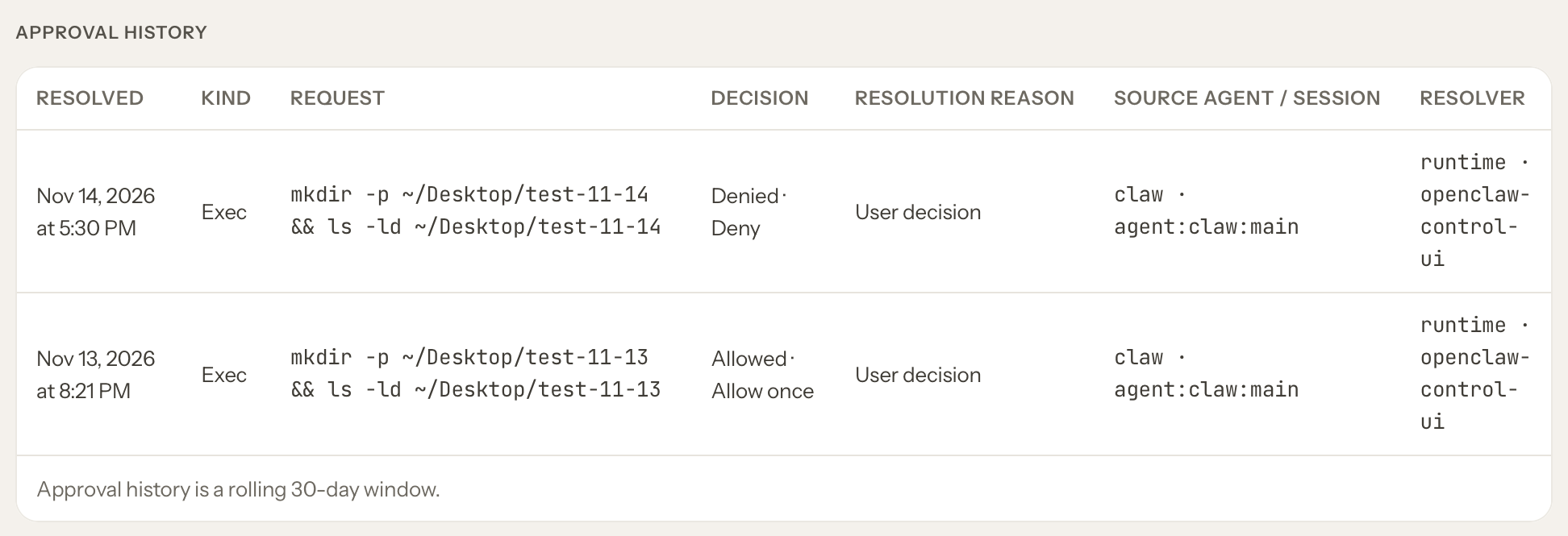
The receipt exists, far from the event. Settings keeps a row for every decision: the time, the command, and whether I allowed or denied it. A real receipt, better than I expected. The chat doesn't link to it. And under "Resolver" it says "openclaw-control-ui", the name of the web app, where I'd expect my name.
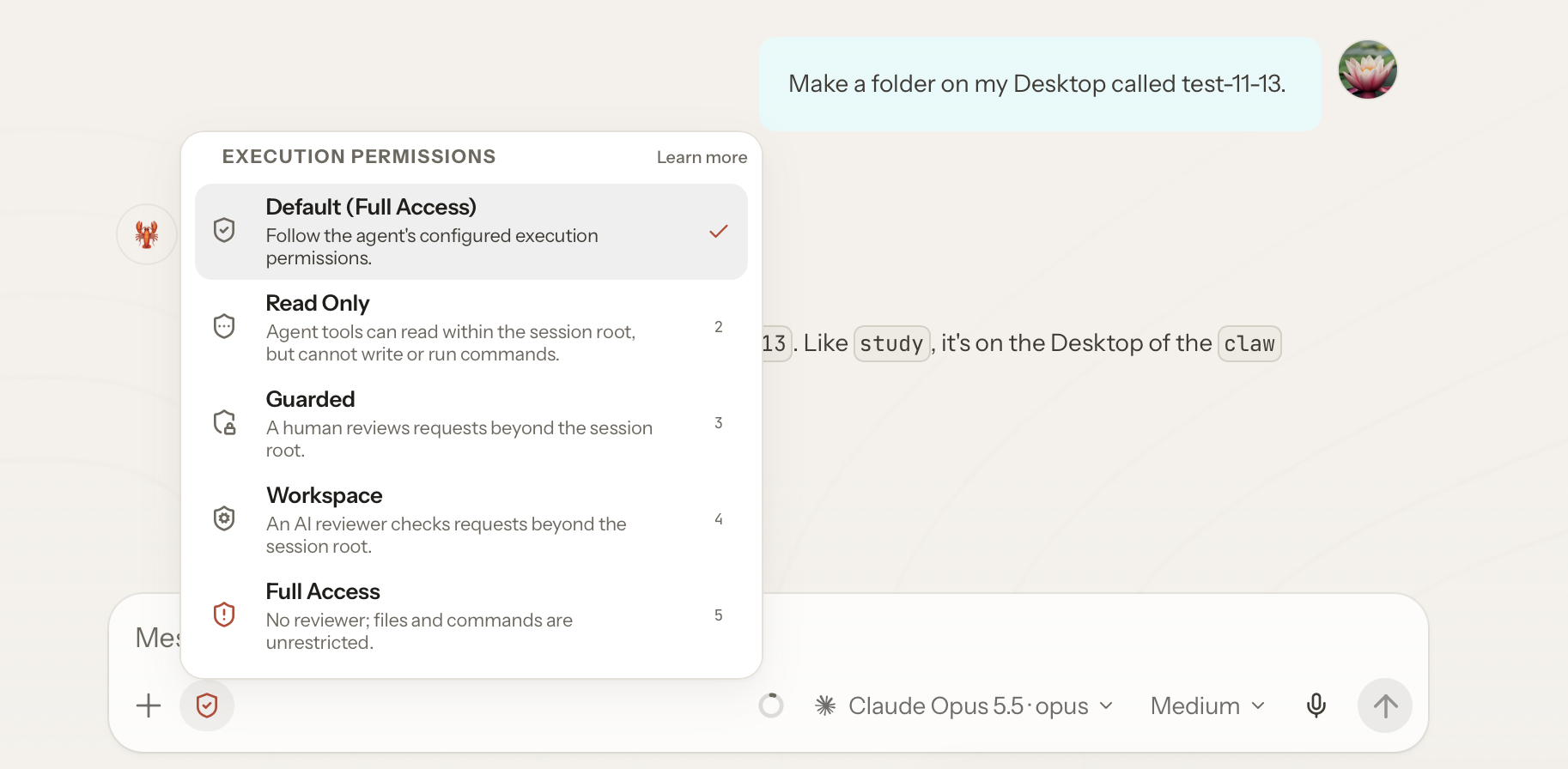
There was a second control I had walked past. In the message box there is a small shield icon with no label. I noticed it in October and never clicked it. When I finally did, it opened a menu of five permission modes, each with a line saying what it does. The control had been one click from where I type the whole time.
This is also where my October notes went wrong. I concluded that almost none of the trust lived in the interface. It does live there. The controls exist, but they're abstracted from the user.
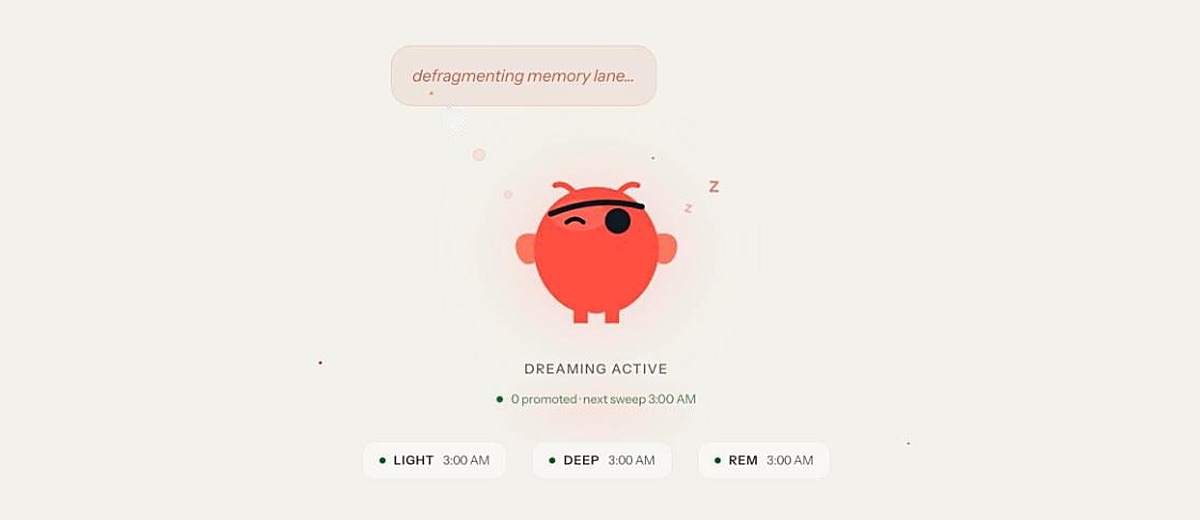
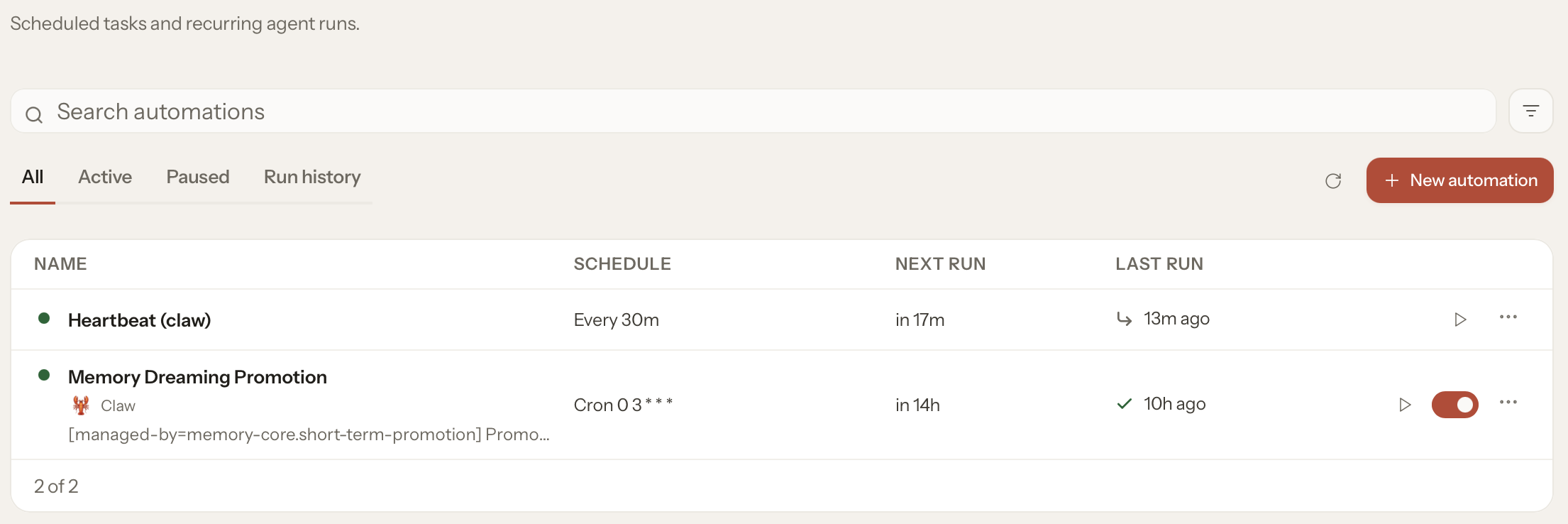
Things run that I never chose. Two automations were running that I never set up: a heartbeat every thirty minutes and a memory sweep at 3:00 AM. The agent was also set to teach itself new skills. Each of these is reasonable. I don't remember being told about any of them.
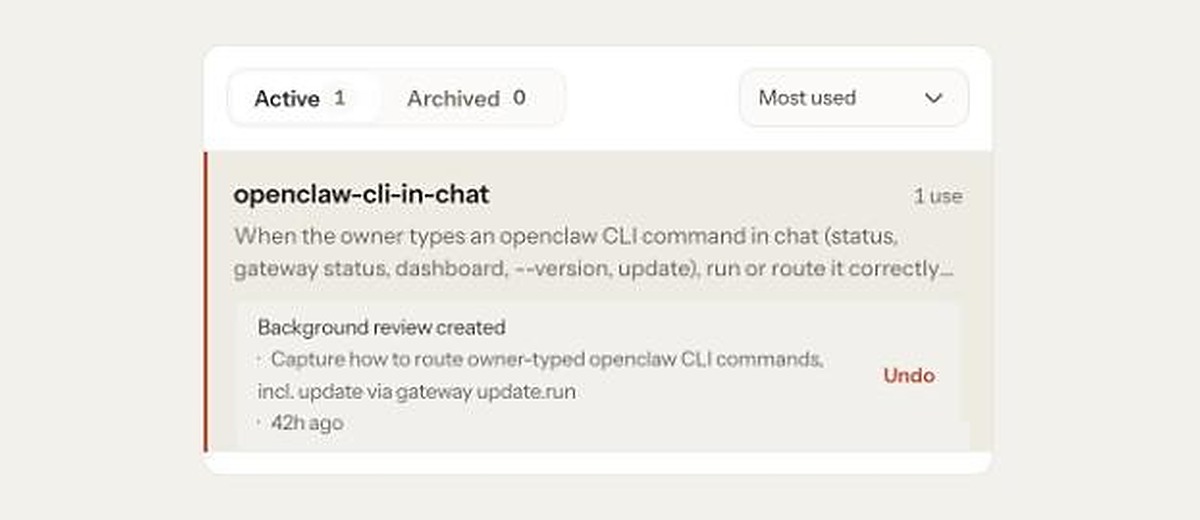
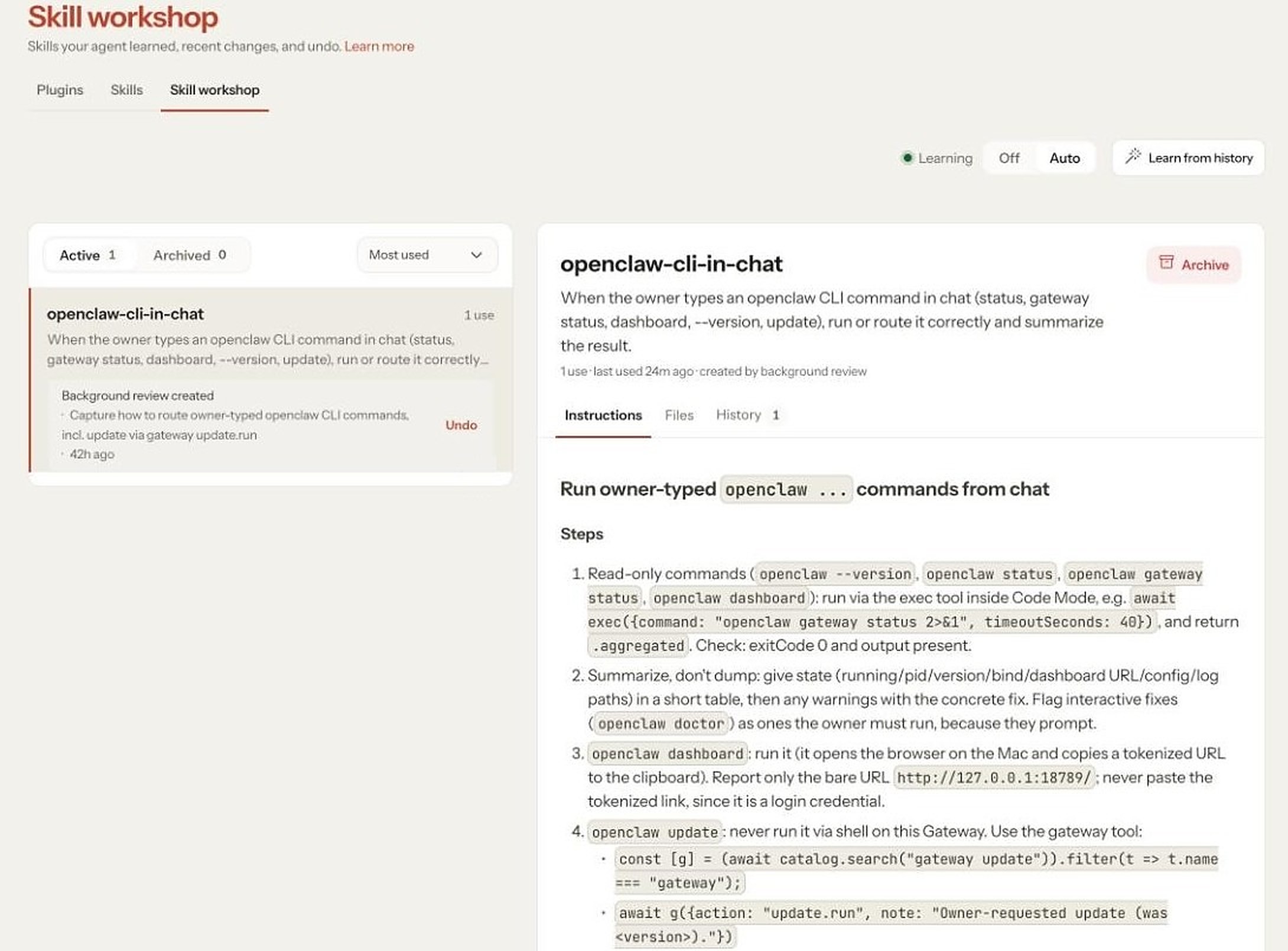
OpenClaw learns from my mistakes. This one surprised me. OpenClaw's chat can run inside the Mac's Terminal, the same window where you type commands to the computer itself, so it's easy to type something to the agent that you meant for the computer. Two weeks after my first session I sat down to update OpenClaw and typed the update command, "openclaw update", into the chat by mistake. The agent took it as a request. It updated itself and restarted, without asking. Then it did something else I hadn't asked for. It wrote itself a new skill, a set of instructions for what to do the next time I type a command like that into the chat. It told me in one line and offered an undo.
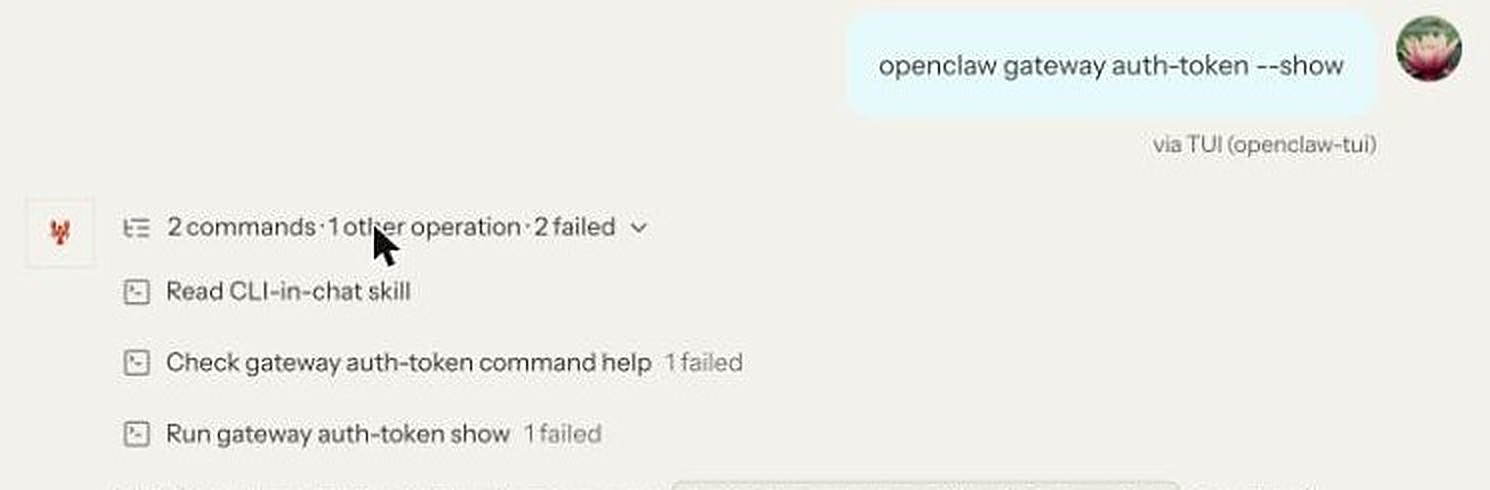
Two days later I made the same slip in the same window, this time with a command that prints a login token. The first thing the agent did was read the skill it had written. Then it tried to run what I'd typed. Approvals were on by then, so the card appeared, and I said no. One mistake had become a habit in two days. The good news is that the habit is listed in the Skill workshop, with an Undo.
The whole app at once
Seventy screens: every page, every Settings section, every menu. Laying a product out like this used to cost some human hours. It took an afternoon, with Claude driving one browser read-only while I went through the same screens in another.
Seen all at once, a few numbers stand out.
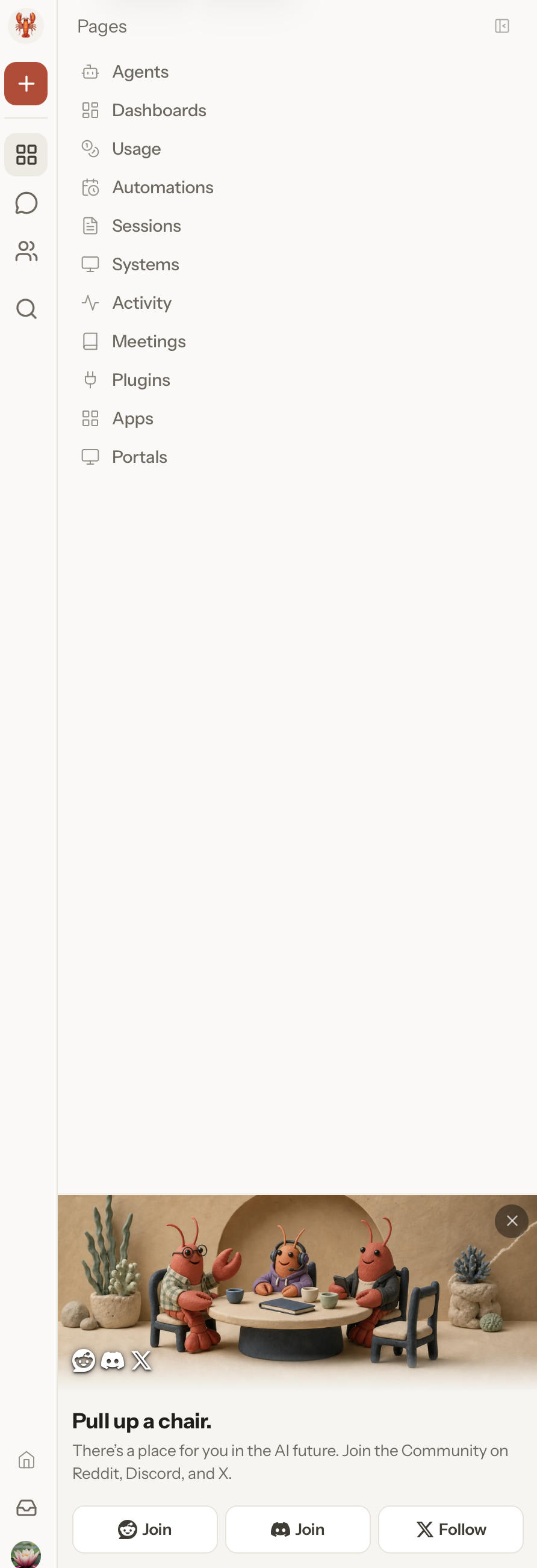
- Nine icons in the main rail, and no words. Behind them are eleven pages and twenty-eight sections of Settings.
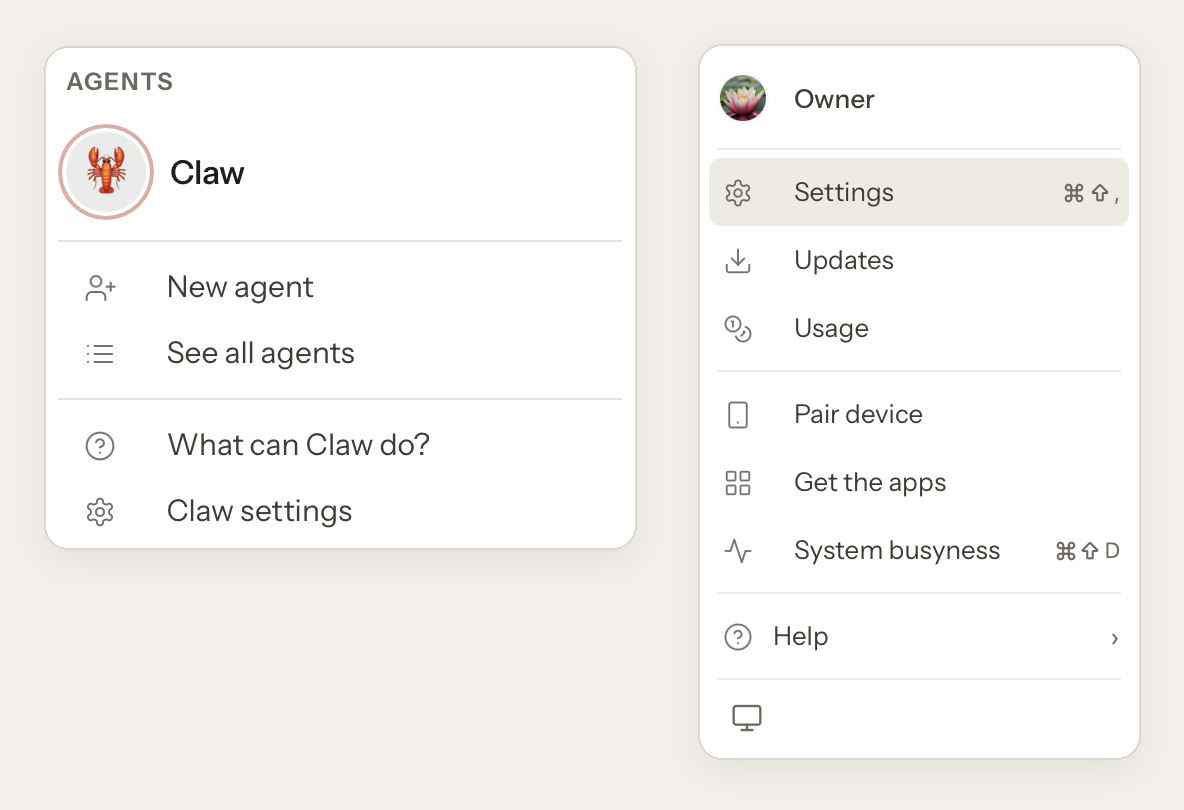
- Two doors into Settings, with different names. As far as I could tell they open the same Settings, one on the Agents section and one on Appearance. Are these settings different? The same? Why are there two? If something matters to a person on a regular basis, it shouldn't be one level down, and it shouldn't be in two places.
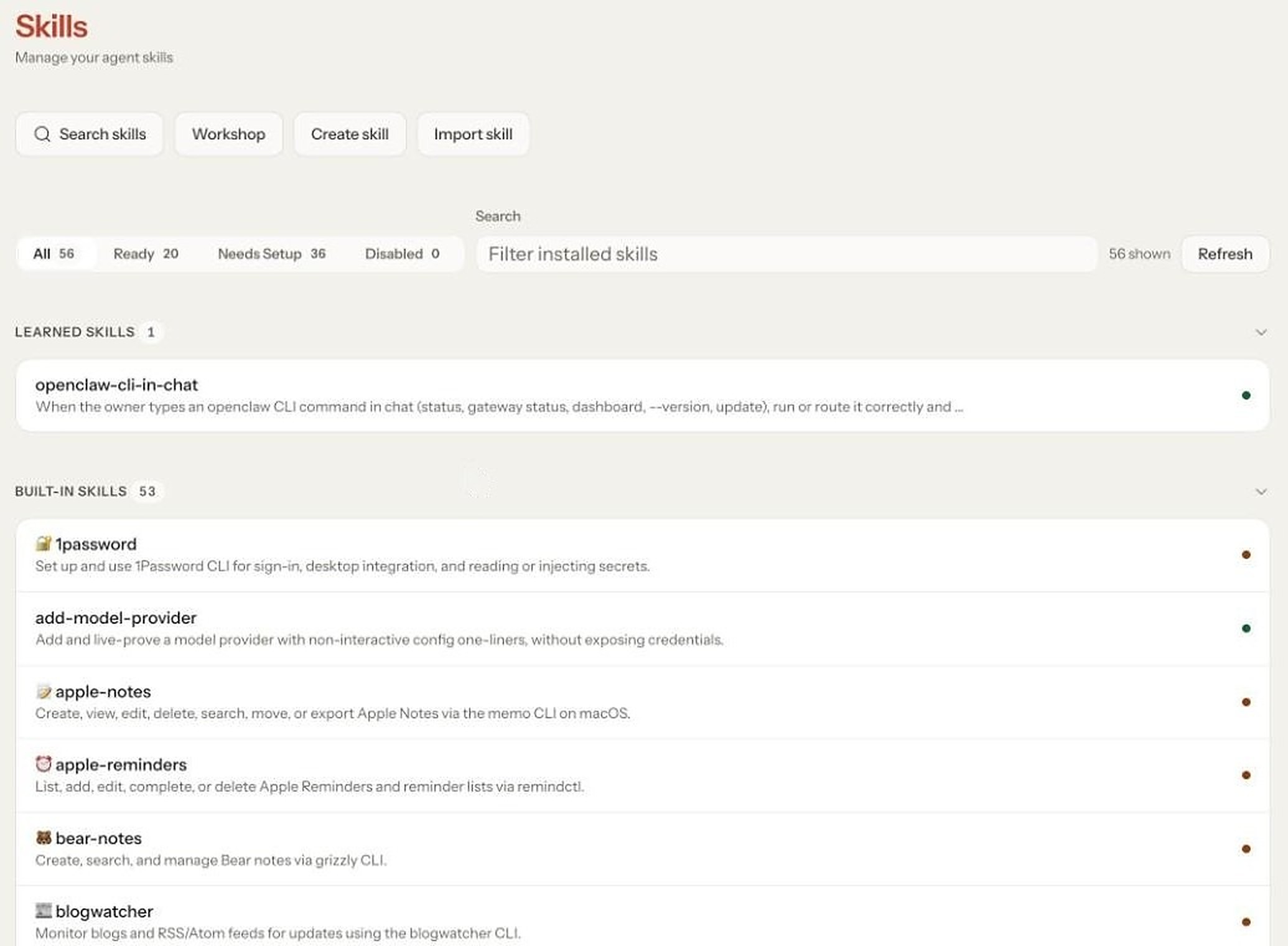
- Fifty-six skills, which are the real answer to "what can this do for me", titled "apple-notes" and "blogwatcher". Thirty-six of them say "Needs setup".
- Permission lives in at least three places I used myself: the shield in the message box, Exec approvals under Devices, and the history under Approvals. None of them links to the others.
- Five different drawing styles for the mascot and its friends.
- One menu item called "What can Claw do?", which types "What can you do?" into the message box and stops.

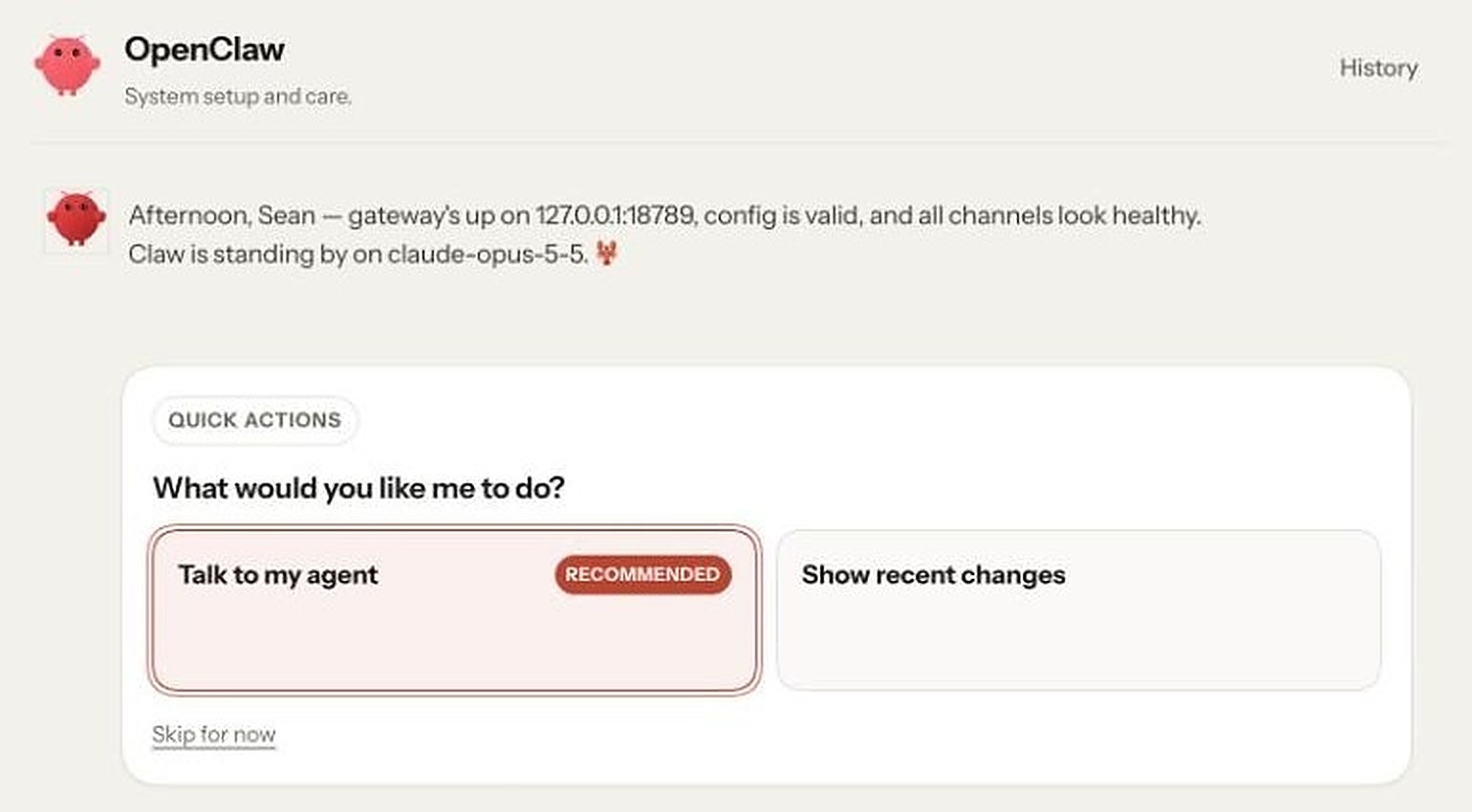
And one thing I didn't expect to find. Inside Settings there is a second assistant, "OpenClaw. System setup and care." It has its own chat window. It greeted me by name and asked what I'd like it to do. It is the closest thing in the product to a guide, and it is the first item in a list most people will never open. Claw had mentioned it once, on the first day: "Ask me anything; for system things I'll ask OpenClaw."
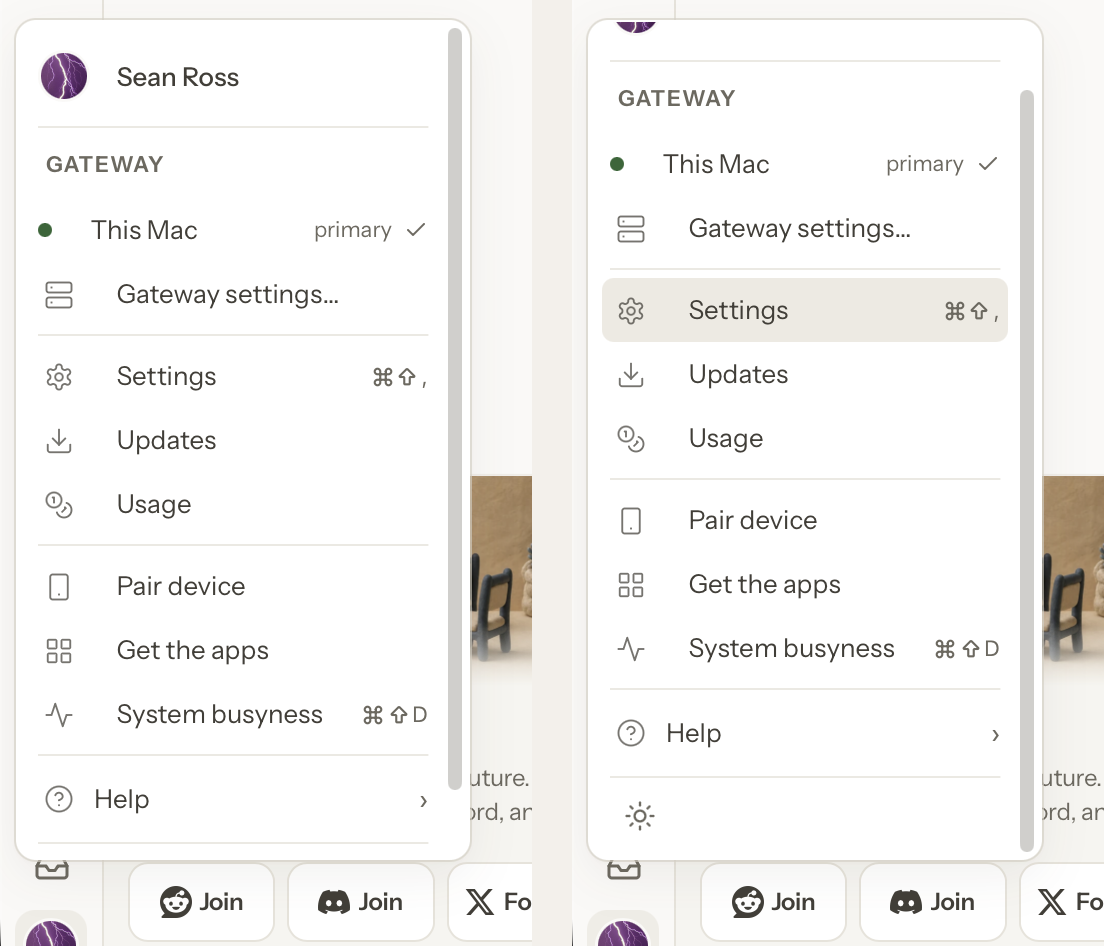
Three smaller notes. The interface is softer and lower in contrast than its neighbors, and the themes could use a high-contrast option. And dark mode should be easy to find. On a fresh install the switch is at the bottom of the menu under my avatar, below the fold of a menu that has no reason to scroll. I'd file that as a bug. The only other place is Settings, then Appearance, about halfway down a long page.
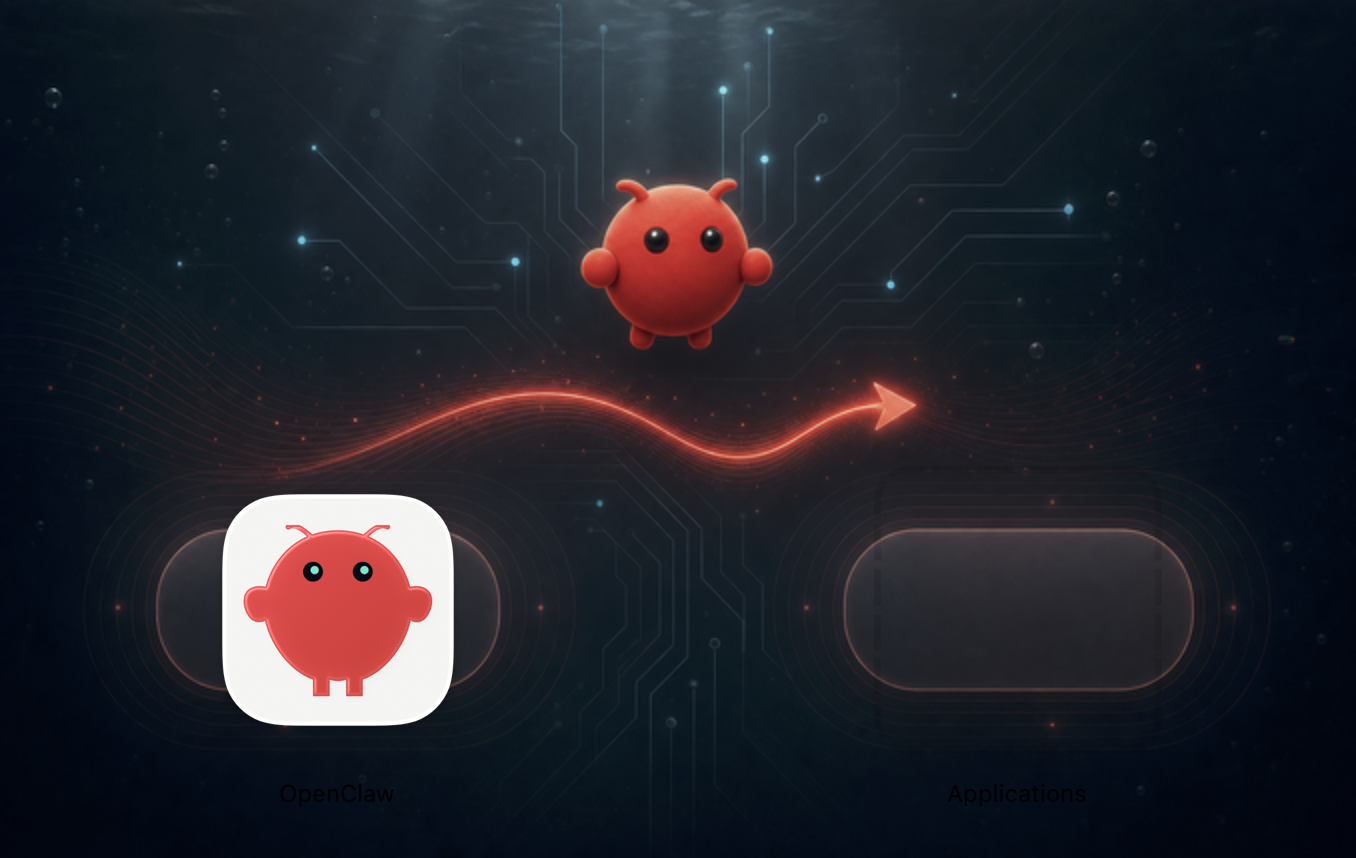
And a nit from the graphic designer in me. The installer asks me to drag OpenClaw to Applications, but the target on the right doesn't look like an Applications folder, and for a moment that confused me. Some people will need that visual cue. The arrow, curling just under the mascot, also gives it a devil's tail.
Next to its neighbors
I looked at the front door of three other products: Hermes, ChatGPT and Claude.
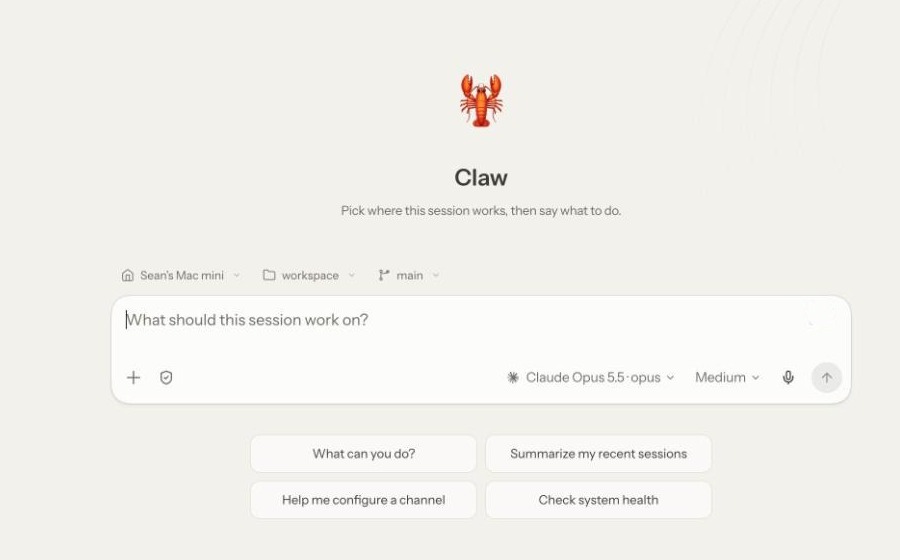
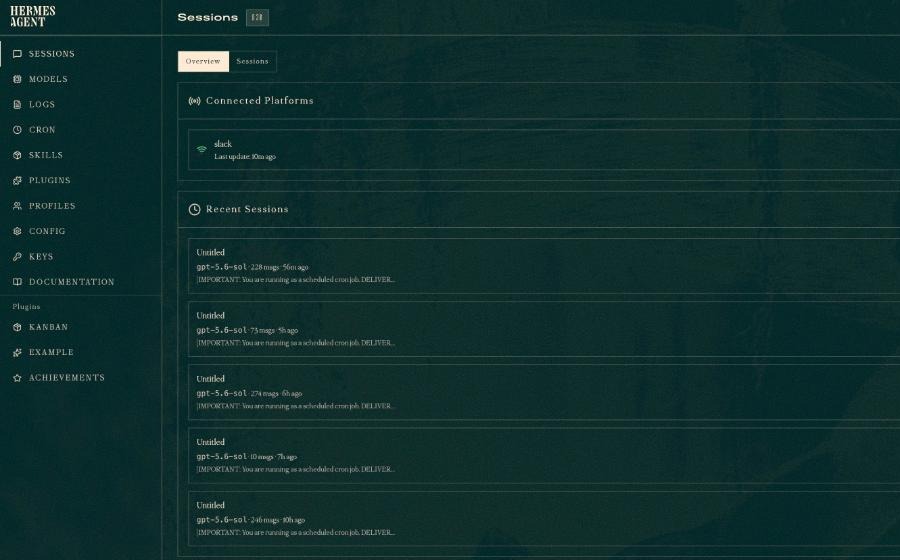
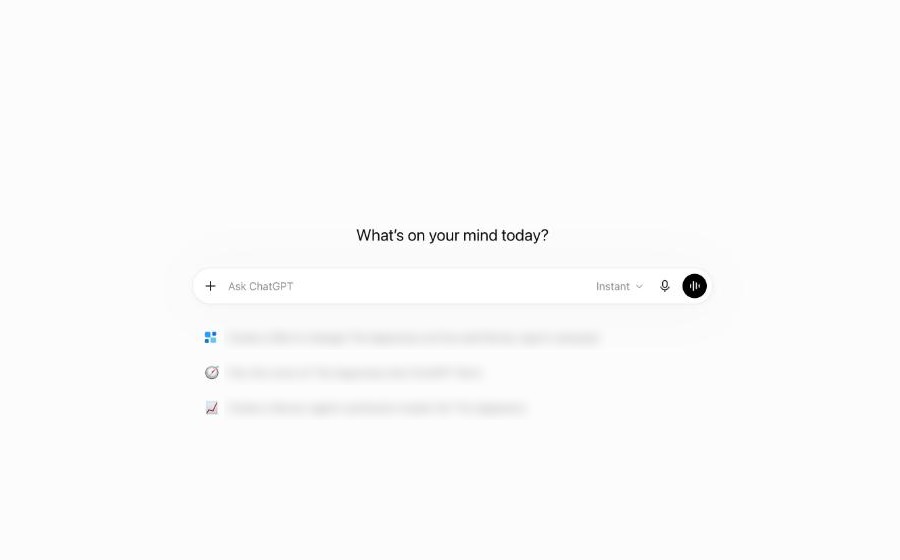
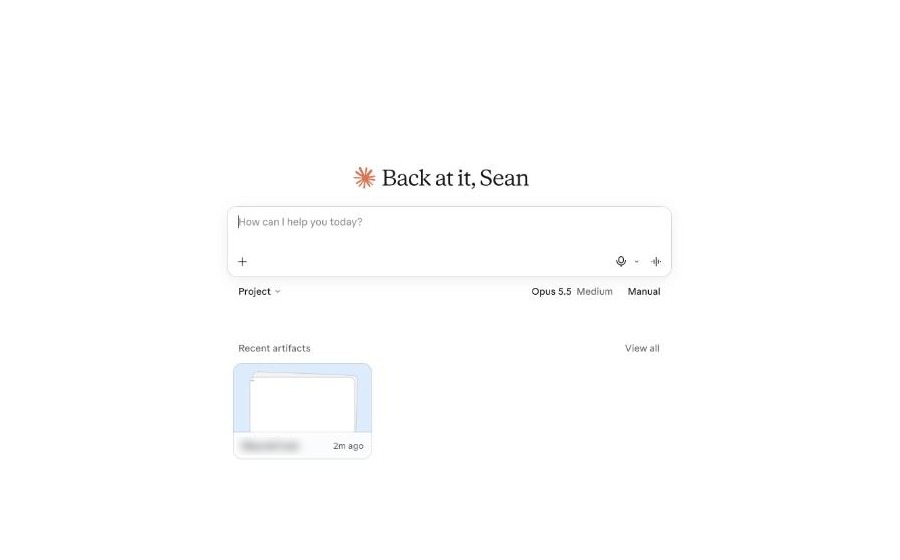
| OpenClaw | Hermes | ChatGPT | Claude | |
|---|---|---|---|---|
| Navigation | Nine icons, no words | Thirteen items, all words | Labeled, collapses to icons | Seven labeled items |
| "What can it do?" | A list of packages | Tools grouped under plain headings | A verb and a benefit per line | A short menu; models described by what they're for |
| Permission | A shield, five modes, three places | A config key | Not on the first screen | One word beside the box, and one sentence |
All four open on one box. OpenClaw already has the right first screen. What differs is what surrounds the box.
The two hosted products explain themselves in verbs and benefits. The two that run on your own machine explain themselves as inventory. That is partly fair, since they carry real operational weight the others don't. But Hermes has at least chosen its reader. It is a console for the person who set it up, and everything about it is consistent with that. OpenClaw hasn't chosen. A few of its screens are written for a first-timer and most are written for whoever wrote the config.
And OpenClaw is the only one of the four where I found a setup assistant. It's the most distinctive idea here.
Who it's for
OpenClaw is both open source and not for profit. Not many (if any) competitors can claim this. It's nobody's business model. It runs on my own machine (which I alone own) and, by its own documentation, collects nothing about what I say or do. If Darth Vader were real, he would probably like to crush it. For some people that will make OpenClaw the only game in town, and the only possible choice. They are probably the people best informed about the risks ahead in this new world of AI everything.
But being informed about the risks is not the same as being an engineer. I'm thinking of lawyers, doctors, writers, teachers, parents, etc., the people who actually read the terms of service and don't like what they find. Plenty of them have never opened a Terminal. Right now OpenClaw is "for the people" in principle and for engineers in practice.
The product should tell its own story on the first screen, in plain words, to someone who has never typed a command. That is the reader I'd design for.
Where it could go
What is the "Apple" version of this product? I mean the one you could hand to a complete beginner and have them doing something useful in five minutes, no manual, no video, completely captivated and inspired. The complexity obviously needs to be there. It doesn't need to take center stage. My gut says the key is simply talking to Claw and asking it to help set up what you want.
Very little below needs to be invented. Most of it uses parts the product already has.
The home screen
The new-conversation screen becomes home. Here it is as it is today, and a sketch of the same screen with the ideas below applied: words on the rail, one plain line for where it's working, the permission said in a sentence, suggestions about what it can do for me, one door marked Advanced for everything else, and a note about what happened while I was away. A first-timer learns what it can do by seeing what it offers.
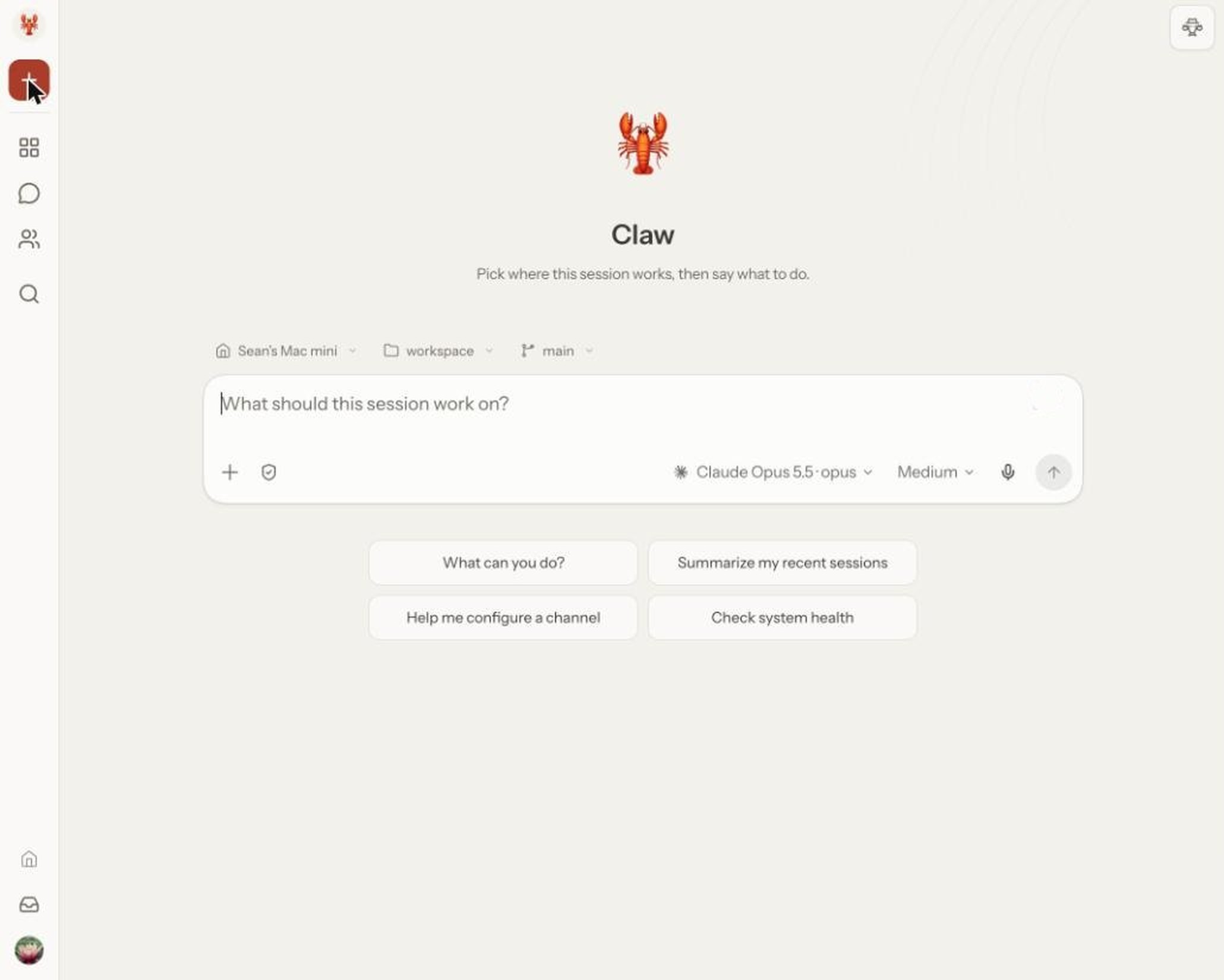
Before. The first screen today.
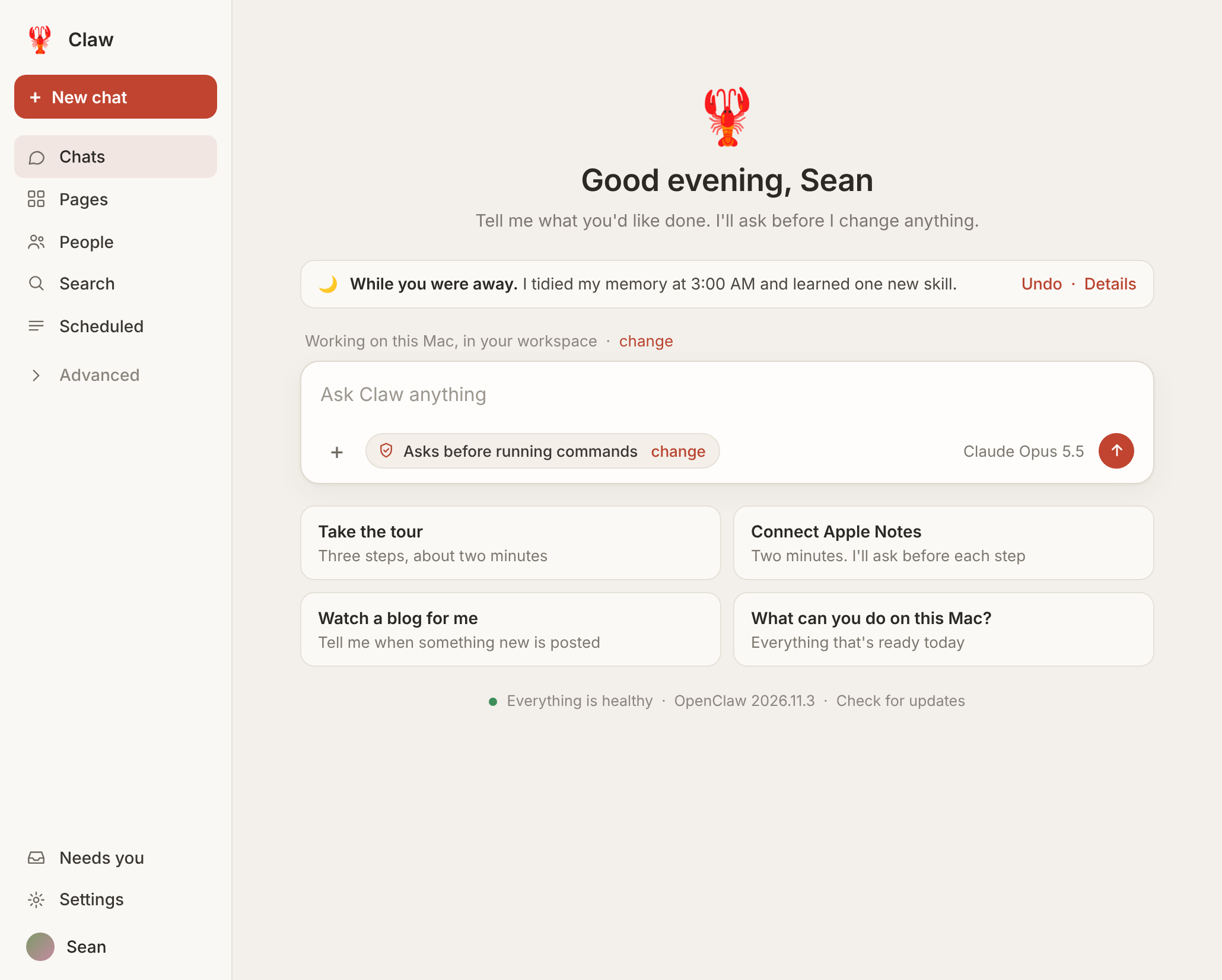
After. A sketch, built mostly from parts the product already has.
Setup is a conversation. Thirty-six skills waiting for setup is a list of dots today. It could be Claw saying: want me to connect Apple Notes? It takes about two minutes and I'll ask before each step. The assistant that does this already exists, in its own window inside Settings, and Claw has said it will ask that assistant for system things. That's the right shape. I just ask whatever chat I'm in when I need something, and I'd expect most people to do the same, so nobody should have to know the second window is there.
Help that starts the conversation. One thing that would be useful here is documentation you can talk to. Walk me through approvals. Walk me through channels. There should be an index of things I could learn about, but the setup assistant opens as a vacant chat with two buttons. It needs helpers, like tool tips, that give people an idea of what they can ask for, and some ready-made prompts to press. One of them should be "Update OpenClaw". A helper called System setup and care is where I'd expect to update the system, and it's where I wish I had gone before I typed the update command into the wrong window. The same goes for a tour. How do I get a tour of what's possible without opening a video or a manual? Three steps, in the conversation, each one triggering the real approval card once. You learn the trust model by using it.
Ask first, then remember. To me it makes the most sense to have the warning on by default, and to let the person choose "always approve" once and never see that warning again for that action. Measured against how the rest of the industry behaves, that is the clearest pattern. Much of it is already built. There is an allowlist, a list of standing grants, and an "Allow Always" on the card that just wasn't available for my command. The rest is saying it plainly: words beside the message box that say what is in force right now, one page that gathers them, and a receipt on the turn itself. Here is OpenClaw's card, with five additions.
Sketch · OpenClaw's approval card, with five additions (highlighted)
Claw wants to make a folder on your Desktop
expires in 29:51
mkdir -p ~/Desktop/test-11-14Asking because this is the first time · change
No answer in 30 minutes means no.
Allow onceAlways allow thisDeny
"While you were away." One note for the things that ran on their own. Last night I tidied my memory and learned one new skill, undo.
Two depths. A short sidebar by default and everything else behind one door marked Advanced. One door into Settings, with one name. Nothing is removed. What's left gets names for people. The Dreams page says "3:00 AM" where another page says "0 3 * * *". A fresh install already calls the gateway "This Mac" and shows my name, where my older one still says "Owner". Do that everywhere, starting with "Apple Notes" for "apple-notes".
Beyond the home screen
Multi-player, plug and play. This is the mode almost nobody knows about. Per the docs, several people can share one agent, but getting there today means setting up something like Tailscale or Cloudflare Access, and roles are set in a config file. I haven't run it with a second person. Making that one step, and giving roles a visual language inside the chat, looks like low-hanging fruit. The open question is the one worth asking first: what are the highest-value things two or three people would do with one agent?
One character. I worked with Claude and Hermes on brand directions against specific criteria and feedback. One came out that I think is worth showing, and it would benefit from more exploration: two claws that make an open O, and a mark that changes with the agent's state. Open, working, needs you, done. The logo becomes the status light.
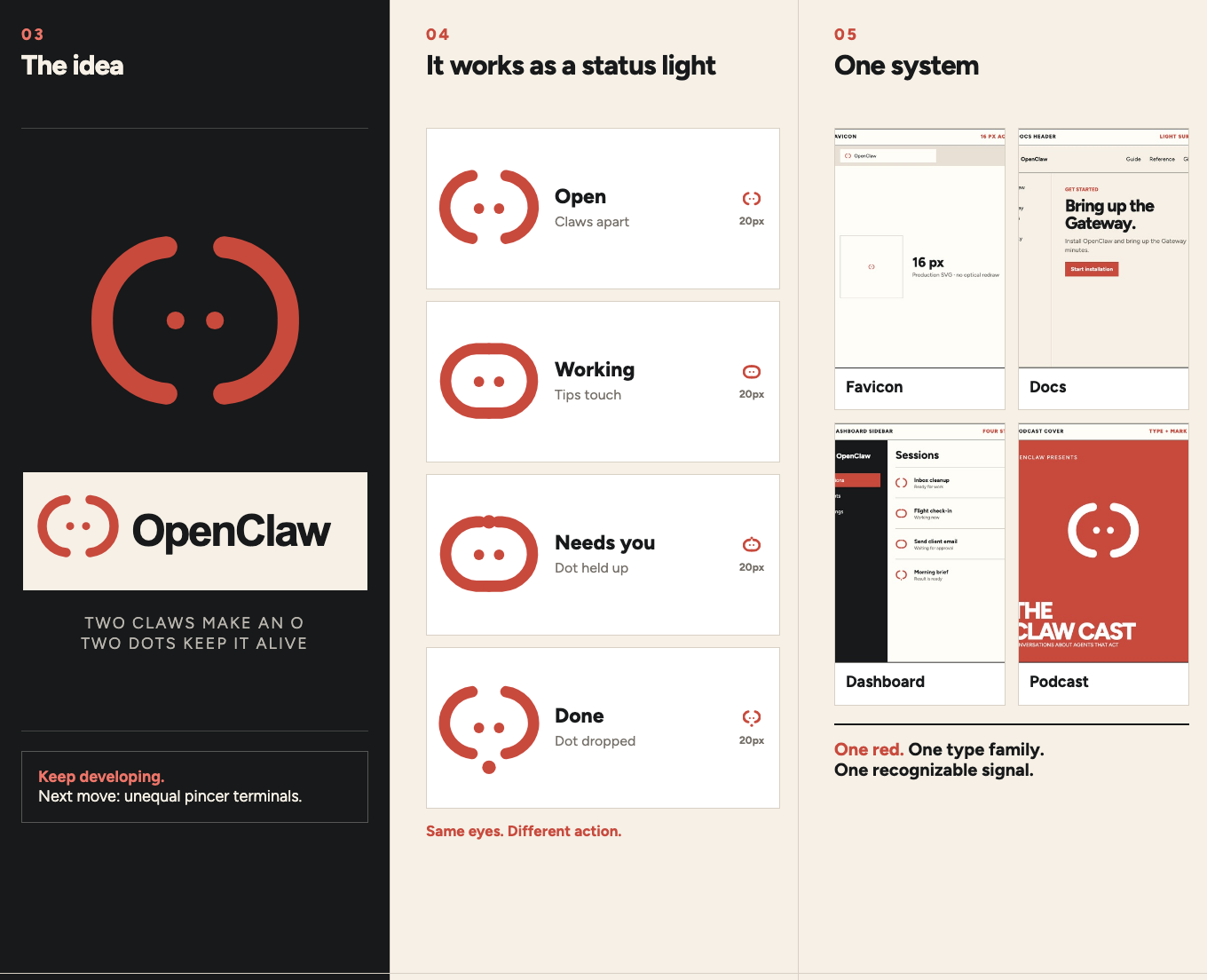
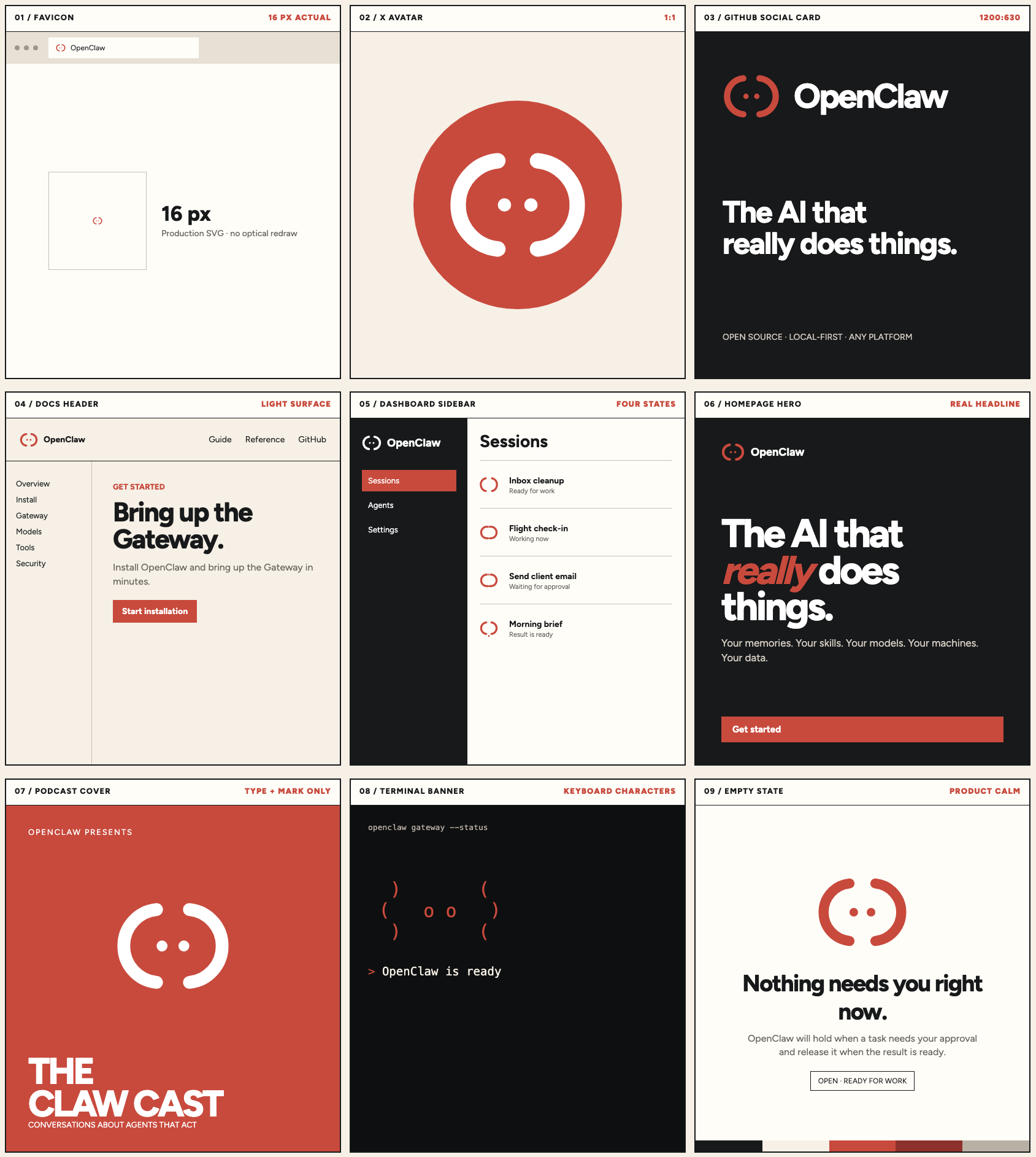
One mark, four states, nine surfaces. Unofficial study. Not affiliated with OpenClaw. An exploration, not a proposal.
What I didn't test
The guided setup on a fresh install. I did one fresh install to check the defaults, and I didn't study the setup itself. Any mode behind the shield other than Default. A second agent. A second person. And I sent no first-timer questions to Claw or to the setup assistant, so how they answer is the next thing I'd look at.
Some of what I've suggested may already be planned. I'd rather be told that than be right.